GB WhatsApp Backup and Restore Complete Data Safety Guide
Your chats, media, and contacts are precious, and losing them is never an option. GB WhatsApp offers flexible backup and restore options that go beyond what the official app provides, including local backups, Google Drive integration, and even cross device migration. This guide shows you how to back up safely and restore your data without losing a single message.
Why Back Up Your GB WhatsApp Data
Backing up your chats protects you against accidental deletion, phone loss, broken devices, and failed updates. GB WhatsApp backups include text messages, media, voice notes, documents, statuses, and even your custom privacy settings. With a recent backup, you can restore everything on a new phone in minutes.
How to Back Up on GB WhatsApp
Open Chat Settings
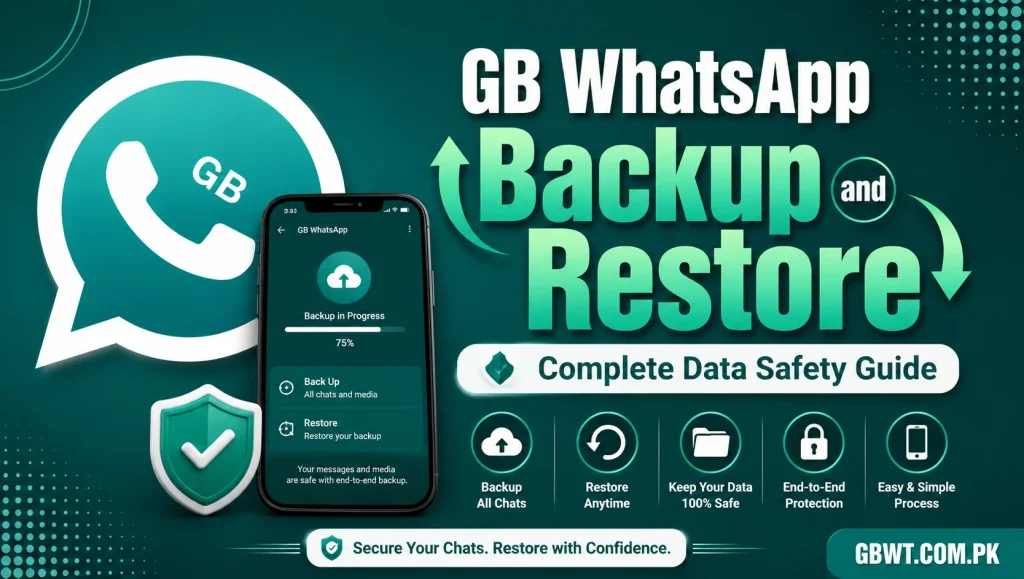
Launch GB WhatsApp, tap the three dot menu, and choose Settings. From there, go to Chats, then Chat Backup. You will see multiple backup options.
Choose Local or Google Drive Backup
GB WhatsApp supports both local storage and Google Drive backups. Local backups are stored on your phone and are useful for quick restores on the same device. Google Drive backups are encrypted and can be restored on any device where you sign in to your Google account.
Set Backup Frequency
Pick how often you want GB WhatsApp to back up automatically. Daily is the safest option, but weekly works for users with limited storage. You can also include or exclude videos to keep the backup size manageable.
Tap Back Up Now
Once your settings are configured, tap Back Up Now to create an immediate backup. The process takes a few seconds for a small chat history, or several minutes for accounts with thousands of media files.
Where Backups Are Stored
Local backups are saved in your phone storage under Android, media, com.gbwhatsapp, backups. Google Drive backups live inside a hidden folder that only GB WhatsApp can access. You can copy the local backup to a computer or external drive for long term archiving.
How to Restore GB WhatsApp From a Backup
Reinstall the App
Uninstall and reinstall GB WhatsApp on the same device, or install it on a new one. Verify your phone number, and GB WhatsApp will scan for existing backups automatically.
Pick the Backup to Restore
GB WhatsApp will show a list of available backups, including the date, size, and chat count. Pick the one you want, and tap Restore. The process copies the messages, media, and settings back into the app.
Wait for Restore to Complete
Depending on the size of the backup, restoration can take a few minutes. Do not close the app during this process, as it can corrupt the database. Once complete, you will see all your chats and media exactly as they were.
Cross Device Migration
GB WhatsApp can move a backup from one phone to another, even across Android versions. Copy the local backup folder to your computer, transfer it to the new phone, place it in the GB WhatsApp directory, and restore during setup. This method works without Google Drive and is ideal for users who prefer offline storage.
Restore on iPhone
Restoring a GB WhatsApp backup on iPhone requires extra care, since iOS uses a different file structure. The recommended path is to use the official WhatsApp iOS app first, restore the backup, and then migrate to GB WhatsApp for iOS through the in app import tool.
Backup Best Practices
Schedule automatic backups at a time when your phone is connected to WiFi, to avoid mobile data charges. Verify the backup size periodically, since a sudden drop may indicate a corrupted backup. Keep at least one backup copy on Google Drive and one on local storage, so you have a fallback if either method fails.
Common Backup Issues and Fixes
If Google Drive backup fails, make sure GB WhatsApp has permission to access your Google account and that the account has free storage. If local backup is missing, check that the backup folder has not been moved or deleted by a cleaner app. If the restore stalls, clear the app cache and retry, since a corrupted cache can interrupt the process.
FAQs
Are GB WhatsApp backups encrypted?
Yes, both local and Google Drive backups are encrypted with the same end to end encryption used by WhatsApp chats.
Can I open a GB WhatsApp backup in the official app?
No, the formats differ. To migrate to the official app, you must use the in app export feature before uninstalling GB WhatsApp.
How long does a backup take?
A small text only backup takes a few seconds. Backups with thousands of media files can take up to 30 minutes, depending on your internet speed.
Can I back up to iCloud?
iCloud backup is not directly supported, but you can copy a local backup to iCloud Drive through the iOS Files app.
Will my scheduled messages be saved in a backup?
Yes, scheduled messages are part of the local database and are included in every backup. They will be restored along with your chats.